SIMS Modules
SIMS iGallery Module
Creating an iGallery Album
- Log into SIMS
- Under the Admin Menu, expand the Modules section and select iGallery.
- Click the Create Album button.
- Enter the name of your album in the Album Name field.
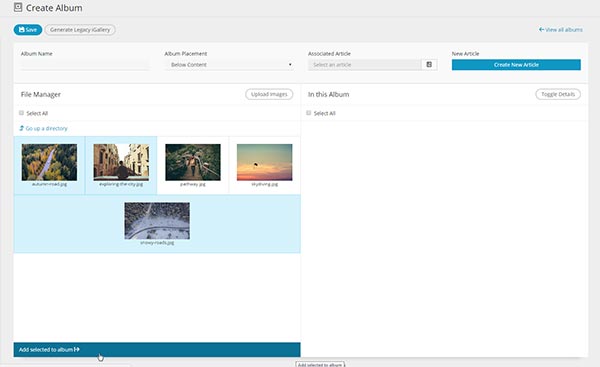
- Select the Upload Images button. Browse and upload your desired file(s).
TIP! You may choose to add your photos to a folder to make locating your desired image(s) easier.
Note:
Adding Images to your Album
In the File Manager Panel of the iGallery Module, select your images and click the Add selected to album button to move them into the In This Album Panel (this is your gallery).
Adding Details (Title, Alt, Description)
Once you have added the images to your album, you can fill out the following image details by selecting the edit icon next to each image:
- Title – The title of your image.
- Alt – The alternate text for your image (in case the image doesn't load).
- Description – A short description of your image.
Note:
Removing An Image From An Album
If you would like to remove an image, select the image and then click the Remove Selected option.
Adding An iGallery Album to an Article
There are two ways you can post an iGallery Album on your article:
Method 1: iGallery Associated Article
- Set the Album Placement (select from dropdown menu) and Associated Article (click the page icon).
- When you set an Associated Article, the album will be placed in that article. You can set the Album Placement to display it Above or Below your content.
- Make sure to Save.
Method 2: Legacy iGallery Templates
- In the iGallery module, select your album.
- Click the Generate Legacy iGallery button. You will receive a confirmation that the iGallery Template generated successfully.
- Under the Admin Menu, expand Article Management and locate the article in which you would like to add an album to.
- Enter the article and click to where you would like to place the album within the editor window.
- Select the Insert Template icon or from the Insert Tab, select Insert Template.
- Locate the iGallery template you generated, it will be named iGallery-YYYYMMDDHHHH (Year, Month, Day, Time of when the gallery was created)
- Select Insert.
- Be sure to SAVE your article when complete.
Important!
Deleting an iGallery
To delete an album, in the iGallery module, click the check box next to the Album Name. Click the Delete Selected button at bottom.
SIMS Calendar Module
The Calendar module is provided to SIMS licensees who have purchased this optional feature. The Calendar module allows you to add upcoming events to an online calendar on your website.
To view the Calendar module, select the Modules Tab from the Admin Menu, and then select Calendar. The Calendar information will load within the right-hand column of your SIMS Interface.
Included with the purchase of the Calendar Module is a customized calendar theme, designed to suit your companies brand.
Calendar Views
Events can be viewed in two different ways in a Calendar, depending on your needs. Both views use the same administration system and allow the user to select a start and end date, category, and add an event description. Both options also use a pop-up (modal) window to display event details to the user.
Calendar View
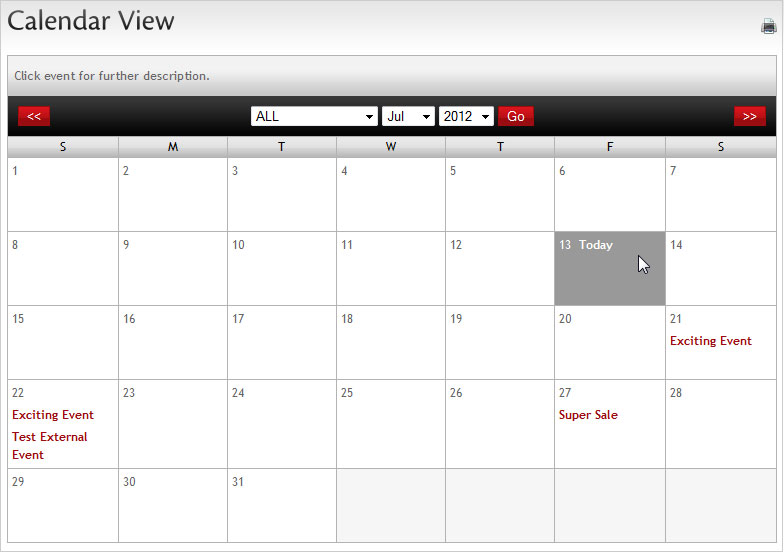
The calendar view is the default method for displaying events. It displays a monthly calendar where events are displayed on their corresponding day(s).
Events at a Glance
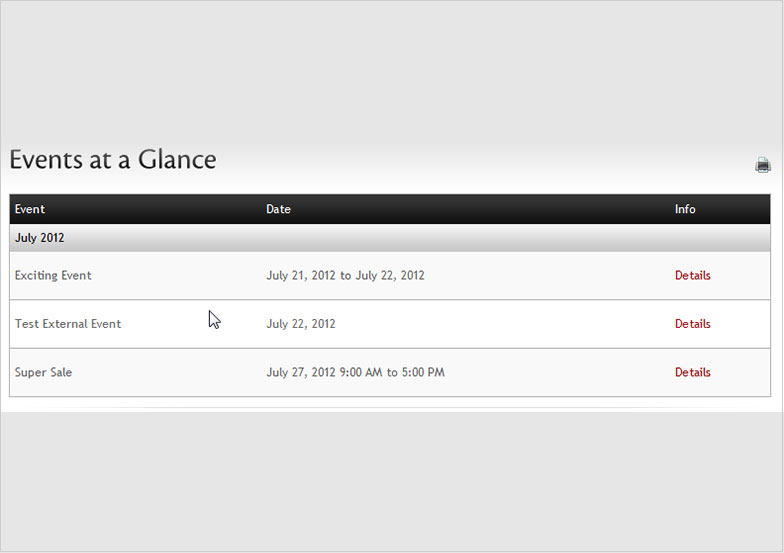
The events at a glance view allows visitors to quickly see all upcoming events in a specified time range. This method of displaying events is beneficial when trying to
display a large amount of events that would otherwise make the calendar view too cramped.
Viewing Events
In the Viewing table (default Calendar modules page), you are able to select the items, type, month and year of events you would like to view. Simply select the information you want, and click GO. If there are events coming up within your date range, you will have the option to delete or edit the events. By default, you will be able to view upcoming events for the current month.
Adding Events
- From the SIMS Admin Panel, select Modules and then choose Calendar
- At the top of the Calendar Panel, select Create Event.
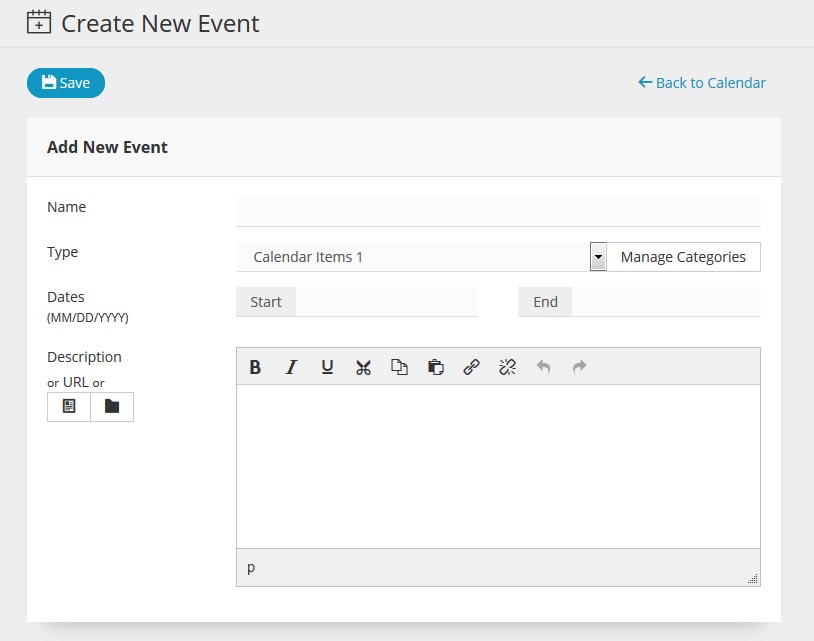
- In the first field, enter a name for your event.
- If you choose, you can create types of events. Otherwise, keep the default setting.
- Enter a start date and end date in the format MM/DD/YYYY. A calendar will open to assist in adding the date.
- You can also enter the start and end time in the format HH:MM AM/PM.
- In the final field, you can enter either a description or details of the event. You may also enter a URL where users can browse for further information, or link to a file by choosing the article or file browser icon to the left... If you just type in the address for a website with no added description, the users will be directed to that URL rather than seeing a description.
- Click Save. Your new event will be added.
Deleting or Editing an Event
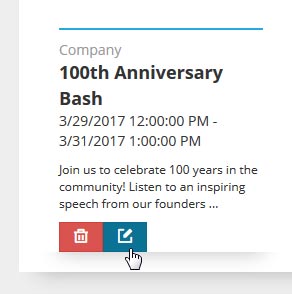
- To Edit an Event or Delete an Event open the Calendar Module in SIMS Administration Panel.
- You will be presented with a list of all events within the current month by default. If the event you wish to edit or delete is listed in a different month or year, select it within the Viewing options at the top. (Calendar Type, Month, Year).
- Once you've located your event, select the event with your cursor.
- On the bottom left corner you will see a delete or edit icon. Select whichever action you desire.
Calendar Type Manager
You can give events Calendar Types (or "Categories") to help in organizing events. For example, you may want to list events by Sales, Holidays, Special Events, Fundraisers, etc.
Adding a New Calendar Type
- In the main Calendar Modules page, select Create Category on the top left.
- Enter the Name for your new category.
- Enter the Order number for the category. This will determine what order your category is listed in.
- Toggle the Status of your Category Type. By default it is activated, but you may choose to temporarily hide the category from public viewing until a later date.
- You may also choose to restrict access for a certain calendar type. For example, if you are using Visitor Accounts, only users who are logged in may see the events for this type.
- When you are finished, be sure to Save.
Editing Calendar Types
You can edit a Calendar Type by selecting its name from the list of Calendar Types. A new screen will open where you can see how many event articles are associated to it as well as review any associated articles.
Removing a Calendar Type
In order to remove a Calendar Type / Category, all articles need to be disassociated from it. You can review if there are any associated articles with a Calendar Type by selecting it from the Calendar Type menu and selecting View Events. Once the Calendar Type is removed from these articles, you can safely remove it. If you have too many associated articles and need assistance removing a Calendar Type, please contact our support team.
Info:
Tip!
SIMS Polls Module
The Polls module is provided to SIMS licensees who have purchased this optional feature. The Polls module allows you to add online opinion polls to your Web site.
Polls are a way to add interest to your Web site and to collect valuable opinions and information on your visitors.
To view the Polls module, expand the Modules Tab in the Admin Menu by selecting it, and then select Polls. The Polls information will load within the right-hand column of your SIMS Interface.
Adding a Poll
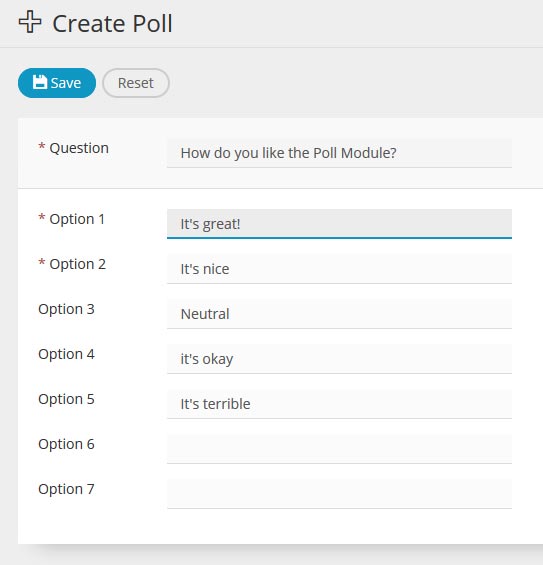
- In the Poll menu, select the Add Poll button located on the top of the screen. The Add Poll Screen will open.
- Enter your poll question into the Question field.
- In the Option fields, enter all possible answers (one answer per option field). You will need at least two options for a Poll.
- Select the Save button.
- Once your poll is saved, you will be returned to the main Polls page, which will display your newly added poll at the top of the list.
Editing a Poll
To Edit your poll simply click on the Question within the main Polls Module page.
Deleting a Poll
To Delete your poll, click the empty checkbox to the left of the question, then click the Delete button to the top of the screen.
Viewing Results
To view poll results, click View Results to the right of your question.
You will immediately be able to view your poll on your website, and view the results of the polls in terms of percentages.
Comersus, SIMS eCommerce Module
Online Shopping Made Easy
Sencia's e-commerce shopping cart is an add-on to our SIMS Content Management System, allowing businesses to sell products and services online easily and efficiently.
An e-commerce shopping cart offers you the ability to keep track of your inventory, while selling your products to a global market.
Add, edit or delete inventory, change prices, create sale items, add shipping costs, add taxes, and process payments online all with our easy-to-use e-commerce system. This shopping cart can work well for small or large businesses with limited or a large quantity of products.
Comersus for SIMS
Sencia can easily add the e-commerce shopping cart module to your existing SIMS Web site. SIMS allows you the ability to update your Web site anywhere anytime, as long as you have an Internet connection. Imagine the ease of selling your products online, when you control all aspects of your online store!
Why Comersus?
There are many e-commerce shopping carts out there, but what makes Sencia's a cut above the rest? You have full control of your Web site and your shopping cart. Inputting new information or products is straight-forward, which eliminates the need for you to outsource your Web site updates.
Accessing the Comersus Module
To access the Comersus module, log into your SIMS administration panel. yourdomain.com/administration
In the SIMS Admin Menu, expand the Modules menu by clicking on the [+], then select Store.
Welcome Screen
The welcome screen to the Comersus module will give you a quick overview of your shop.
Store Status (Opened/ Closed)
At the very top of the screen, you can view the status of your shop. In this example, the shop status is Open. If you wish to close the shop temporarily or permanently, you can quickly do so by clicking the hyperlink to the right to Close. The padlock icon also symbolizes the status of the shop.
Store Open
Your online store is open and available for users to browse and shop.
Store Closed
Your online store is temporarily or permanently closed.
Orders/Visits
Under the store status, Comersus lists the current date and the number of visits to your store since your last login to SIMS. It also lists whether or not any new orders or reviews to moderate. If there are, it will prompt action.
List New Orders
If a New Order is in, you can select the “waiting!” hyperlink to call action. You will be taken to a page that lists all new orders. If you wish to view all orders (not just new), you can select Sales > Orders > List All.
Moderating an Order
By clicking on the “moderate” hyperlink, you will be taken to the Activate Reviews page. From there, you will be able to view the submitted review and either Activate it, or Delete it. By taking no action, a review will only be visible to you.
Quick List/ Reference Items
In the middle section of the Welcome Screen are three quick link lists.
Main Menu Items
To the left there is a list of the main menu items; StoreFront, Sales & Customers and Utilities.
Information
In the center, you have a list of information on your sales.
- Permission level
- Catalogue size (total number of Products available in your store)
- Next Order number
- Garbage to clean and
- Total cost of inventory – this number is dependent on the Cost Price you list for each product and the total Stock of each item.
Popularity Charts
In the bottommost section of the Store Welcome Screen, you will see three JavaScript generated charts; Best Sellers, Popular (products with the most views) and Recent Orders. These are meant as quick references to status and popularity of certain items in your store.
Product Categories
Categories can be created to group products together. For example, you might want to group clothing items together, separate from accessories or home décor. You can create an unlimited amout of categories but you can only assign a product to a maximum of three different categories.
Product Categories act similar to Articles in the SIMS. Where Root Categories are main menu items and Categories listed under are Submenus.
Creating a new Category
- Select Storefront> Products from the main Store menu. There will be three options available; Add, Modify and Product Assignments. Select Add under Categories.
- You will be taken to the Add Category page. From here you can type in the name of your newly desired Product Category. If you wish to create a Subcategory, select an option to become a Parent Category; by default this is set as Root, which means it has no parent.
- Select if you wish the new category to be active (if you uncheck this, a category will be created, but will not be accessible directly from your store). This can always be changed later on. Hitting the Save button will complete the creation process.
- You will then be asked if you would like to upload an image for the Category you just created. This step is optional.
Modifying a Category
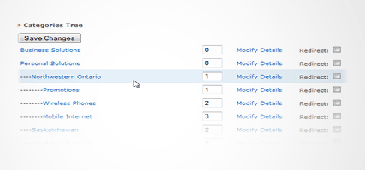
Select Storefront, Products from the main Store menu. There will be three options available; Add, Modify and Product Assignments. Select Modify under the Categories option. You will be taken to the Categories Tree.
The Categories Tree
The Categories Tree lists all current categories, as well as subcategories and sub-subcategories, etc. They are separated by four dashes next to each level. So:
Main Category
- - - -SubCategory
- - - - - - - -SubSubCategory
From here, you can select what to do with each Category.
View Category Page
Click the title of the category, by doing so a new tab will open to your website in that categories section of your store.
Changing the order of Category Item(s)
To change the order in which a Category item displays in your store, Type the desired order number into the input box . Be sure to hit Save Changes once you are satisfied with the order.
Changing the Category Name / Parent / Image / Status and Deleting
Select Modify Details from the Categories Tree, from here you can make your desired changes then hit Modify.
Products
Adding a New Product
Select Storefront> Products from the main Store menu. Under the Products heading, select Add. You will be taken to the Add Product Page.
SKU#
SKU#, or Stock Keeping Unit Number refers to a number code used to identify unique products or items in a business. If your product does not have one, you can leave this blank.
Keywords
Select keywords for your product.
Description
This field can be used to name your product. For example, it may be a "Pale Gray T-Shirt"
Details
Here you can better describe your product in detail.
Price
List the price of your product. You can list; the regular price, the online listed price, wholesale price for buyer to buyer customers and the cost price (cost to manufacture/ configure).
Product Image
If your product has an image, you may add it here. Product images must be uploaded to SIMS before you can add them here. Images can be uploaded in the main SIMS Admin Menu, under Article Management > File Upload.
Supplier
Select the product Supplier, if no suppliers are setup, you can add them in the Suppliers Menu. Under Products> Suppliers> Suppliers Menu at the bottom. From there, select Add Suppliers.
Categories
Select a Category to place the product under. You can place a Product in up to three different categories.
Status/ Additional Options
Select the status of the product. Here you can also list additional options, such as; if the product is a rental, can be personalized, is a hot deal, hidden, etc.
Size/ Availability
This section is optional, where you can add size information, or select other options. Such as adding a customization field or free shipping.
Digital Goods
If the product is a digital project (ie, an e-book), you can place a download link here.
Form Quantity
This number refers to the total number of this item that your customers can add to their cart at one time, making it easier for them to purchase multiple copies of the product.
After all fields are filled out, select add to complete the process.
Once the product is successfully added, you will be taken to a page stating "Item added"
Things you can do now:
- Modify the stock for this product.
- Add additional product images.
- Send an email distribution to registered customers regarding this new product.
- Add another product.
Print Product Labels
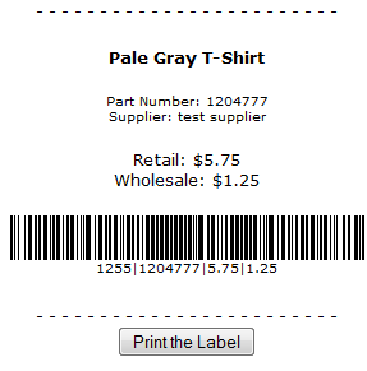
Product labels can be generated for printing by going to… Sales > Products > Print > one (or) all
This feature will generate a barcode using the product; Item Number, Stock Keeping Unit, Original Price and Wholesale price for BtoB customers.
Bundling Products
Sometimes you may want to list similar products in one page together. Bundling a product means creating one product listing into multiple products. For example, you may want to sell a set of book as one item, but list each individual book as separate below it.
To Bundle a Product, go to Storefront > Products > Bundle Products and Select/ Unselect Main
You will be brought to a search to select your main item. Type in the name of the main product you wish to bundle. You will get a message “The product was defined as Main product for the Bundle. To assign products click here...” Select the link.
From here you can select items from a dropdown list to assign to the bundle.
Product Options / Variations / Add-ons
Options/Variations can be added to a product for an additional cost. For example, you may be selling a shirt for $8 with an option to add a graphic for an additional $1.
Adding Groups
To add a group, go to Storefront > Products > Product Options/Variations Management > Add Groups
The Group Name would be the title of the option/variation. In the case with the example from above, the group might be called “Graphic.”
Once a group is created, you can start creating options under it.
Adding Options
To add an option, go to Storefront > Products > Product Options/Variations Management > Add Options
Suppose your group name is “Graphic”, the options would be a list of the various graphics you can add to the shirt. So you may add one option “Tree with Roots” and another with “Giant Spider.”
In this step, you can also list the weight of the addition if applicable. Otherwise you can leave this blank.
Assigning Options to Groups
To add an option to a group, go to: Storefront >
Products > Product Options/Variations Management > Assign Options to Groups
Here you can assign your options to the group. Select the Group you would like to assign option to, then select list. All created options can be viewed in a drop down list. Find the options you would like added to the group, then hit assign.
Options can be assigned only once to a Group, but they can also be assigned to multiple groups.
Assigning Groups to Products
To add an option to a group, go to Storefront > Products > Product Options/Variations Management > Assign Options to Groups
Once the options have been assigned from your designed groups, you would still have to assign them to a product.
- First, locate the product you wish to assign the group to, and hit select. Next, select the group you created previously and select Assign.
- Comersus will automatically save your changes and refresh the page.
- You can assign as many groups as you wish to the product. If no options are assigned to a group and you assign it to a product, it will not list in the product page.
Related Products
Related products can be added as product suggestions when viewing certain items. For example, you may want to draw attention to the “long sleeved shirt” while you are viewing the “pale gray t-shirt.”
- To add a Related Product, go to Storefront > Products > Related Products > Assign/Unassign Related Products
- You will be asked to locate the product you wish you assign related products to. Once you locate your product, you will be shown a list of categories you can choose the related product from. Find the category, then hit List Products.
- You will be shown a list of all products in that category. When you find the suggested product, select it.
- The product will now be listed as a related product, and you will be taken to a page title Related Products for (product name). If you wish, you can now assign more related products to this item.
Free Product Offers
Free product offers, are assigning products as free offers when purchasing another product. For example, if you purchase a “Book Collection” you will receive a free “T-Shirt.”
- To assign a Free Product Offer, go to Storefront > Products > Free Product Offer > Assign/Unassign Free Product
- Locate the item you wish you assign a free product offer to using the search.
- You will be shown a list of product categories. Find the Category for the free item you wish to offer, then select List Products. Find the free item, and select it.
- The free product offer is now assigned.
Stock
The Stock feature allows you to keep track of your products. Each time a product is purchased, its stock decreases by one. The Stock feature can also help calculate your total cost of inventory (which is listed on the welcome screen of Comersus).
To access the Stock Menu, go to Storefront > Products> Stock Menu
Modifying Stock
In the Stock Menu, select Modify Stock. Search for the product you wish to modify the stock of. When you locate the product, it will list the current stock of the item. If this was not set yet, it will be at 0. Select Modify.
You can add or remove stock from the listing here. To add stock, type in the quantity you wish to add. You can also place note details in regards to the change. In order to remove stock (perhaps due to a sale), insert a – before the amount you wish to remove. (So -1 if you reduce stock by 1)
Make sure to save.
Stock Movements
In the Stock Menu, select Stock Movements. The Stock movements feature lists any recent changes to your stock. If the change is a result of a store order, it will list the invoice number and any details along with the change.
Listing Out of Stock Items
In the Stock Menu, select List-Out-Of-Stock Products. This feature will list any products with stock less than 0, letting you know which items need to either be restocked or removed.
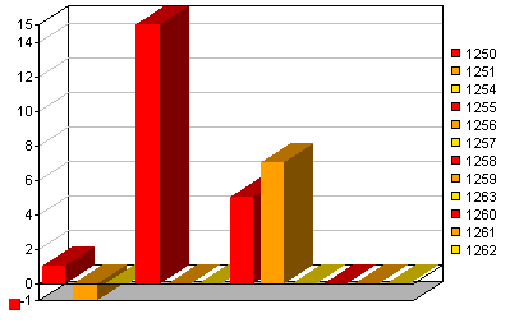
Stock Chart
In the Stock Menu, select Stock Chart. This feature generates a graphical chart, listing your stock by product.
Product Reviews
The product reviews feature allows customers to rate and comment on products in your store, giving you feedback and/or ensuring the product quality to potential new customers.
Moderating a Review
When a new review comes in, you are given an option to either activate it or delete it.
By default, when a new review comes in, it will state so on the Welcome Page until action has been made. You will be given an option here to moderate it. Alternatively, this menu can be accessed by Storefront > Reviews > View Pending
In the “Activate Reviews” page, you are able to look over the review, who sent it and what they rated the product. From there you can choose to either Activate or Delete the review.
Deleting an Activated Review
One a review has been actvated, it will no longer be listed in the Pending Reviews page. To delete an already active review, go to Storefront> Reviews> Search by Keyword, type in the Subject of the submitted review. You will be shown the contents of the review. Select Delete. The review will then be removed.
Product Discounts
To access the Discounts Menu, go to Storefront> Discounts
Adding a Discount to All Products
To add a discount to all products, go to the Discounts Menu, under the section Add Discount, select All Products, you will be taken to the Add Discount page. Enter all the required fields.
Description
Enter a title for the discount, this is for your own reference.
Valid for Product
As it is applying to all products, this will be marked as all.
Price/ Percentage to Discount
You can either enter a specific Price discount, or you can enter a percentage to discount.
Active
Uncheck this if you would like to activate a Discount offer. If this is unmarked, the code will not work.
One Time
: If this boxed is checked, it will be a one-time use code, and can only be used once per customer.
Quantity/ Weight/ Price Limits
These fields are used in placing limits on what a customer can use the codes for. (on a limited number of items, for a weight limit, or price limit).
Discount Code
This is the code customers can enter during checkout to apply the discount. Codes can use numbers or letters and are not case sensitive.
Adding a Discount to Specific Products
- To add a discount to ONE product, go to the Discounts Menu, under the section Add Discount, select One Product, you will be taken to the Add Discount page.
- Search for the product you wish to apply the discount to then select it.
- The form fields are the same as applying to All Products, only under Valid for Product, the name of the specified product will be listed.
Modifying a Discount
- To modify a discount, enter the Discounts Menu, select Modify Discount.
- You will be given a list of all created discounts. From there you can either modify or delete a discount. To inactivate a discount, select Modify and uncheck active.
Discounts per Quantity
Discounts per Quantity can be applied to a product to automatically give a discount when a specified number of a certain product is purchased. For example, you may want to give a discount when a customer orders more than 10 of a certain product.
Description
For your own reference, you can create a description for the discount.
Product
This field lists the name of the product you are currently applying the discount per quantity to.
Price to Discount per Unit
This field lists the amount to reduce from each unit once the specified quantity is reached.
Quantity
Enter the quantity to which the discount will be applied to.
Auctions
The Auctions feature can be used to sell products for undetermined amounts (ie, for a charity sale) or for less (stock you need to get rid of, etc.) They are held over a period of time, and can include minimum/maximum increments.
Setting up an Auction
To set up an auction, go to Storefront> Auctions, then select Create Auctions. Then locate and select the product you wish to create an auction for. Once selected, you will be taken to the Create Aution page.
Auction Name
Enter the name for the auction you wish to create.
Auction Details
Enter any details for the auction into this field. This could be such as product condition, quality, details/description,etc.
Start Date/ End Date
Set a start and end dat for the aution. By default the start date is set at the current date. It is important to change the end date for the auction to be active.
Active
Select if you wish the auction to be active once you are done creating it.
Product
This field states which product the aution is being created for.
Start Price/ End Price
This refers to the start and end price of the auction. If an end price is set, it will become an auto-buy price *if this price is met, the aution will automatically end.
Min/Max Offer Amount
A set amount a customer can increase a bid. It is important to set a min/max bid amount or customers will not be able to place bids. If you wish for no max offer amount to be present, it is recommended that you place the end price as the max offer amount.
Customer Type
Select if the aution is intended for Wholesale or Retail customers.
*You can only hold one auction per product at a time.
*It is important to fill out all fields, do not leave them as default.
Completed Auctions
Once an auction is completed or a customer places a winning bid, both parties will receive an email notification. The winning bidder will receive an email, where they can then add the product to their cart. They will also receive an automatically generated discount code, which they can use to buy the product at the price they won the auction for.
Automatically Generated Discount Codes
When an auction is complete, a discount code is automatically generated. The code is 6 characters long and randomly generated. The code is set as a fixed price discount calculated by the regular price of the item minus the price won from the auction.
So if a product is regularly 10$, and the customer wins with a bid of 3$, the discount code will be for a fixed price of 7$. Once the code is activated, the discount code will expire.
Listing Auctions
To list all auctions and their statuses in a list view, go to Storefront> Auctions> List Auctions. This feature will generate a list of any auctions, active or inactive. From the action column you can also view if an auction has any current bids, or who the winning bidder was by selecting Offers. As well as this, you can also delete inactive or completed auctions, or modify them.
Orders
Comersus helps keep track of all your orders and allows you to check them by status; pending, delivered, cancelled and paid.
Listing Orders
To view a list of all your orders, enter the main Sales menu from Comersus. Select Orders> List All.
The List All Orders feature generates a paginated list of all orders from your store from newest to oldest. It allows you to check; the order number, the date the order was placed, the name of the customer who placed it, the total amount and the status. It also allows you to generate an invoice or a shipping label for each order.
View/Change Order Details
To view specific details on an order, you can click on the order number from the List All Orders page. You will be brought to the View Order Details page. The order details page lists specific information based on the order, such as;
- The order number
- The date ordered
- From what IP address the order was placed from
- Who ordered the product(s)
- Their email, phone number, address, shipping address
- Which products were ordered
- Package volume
- Payment details
- Order status
- Discounts
- Taxes
- Total amount ordered
- Billing
Order Status
- Pending/ In Process: When an order is first placed, the status is set to pending. This means the order is added, but is still awaiting further action.
- Paid: When payments are successfully received from a customer, the status can be switched to paid by up entering the Authorization Code in the View Order details page. To save the Authorization code, select the yellow arrow icon. Once the payment is authorized, the customer will receive an email letting them know that their order is being processed.
- Delivered: When an order is authorized you can let the client know when an order is shipped by filling out the Shipment Tracking form in the View Order details page. This will send your customer an email stating that the order has been processed and shipped. It will also list them any order details.
- Cancelled: If an order is set as cancelled, you can set its status as so. Although the customer is not emailed to let them know it is cancelled, they can confirm this by logging in with their customer account, selecting My Account > View Orders. This feature will list any current, pending, completed or cancelled orders.
Generating an Invoice
If you require an invoice for a specified order, you can do so by going to Sales> Orders> List All, find the order you wish to generate an invoice for. Under Actions, click on the invoice icon.
Generating a Shipping Label
If you require a shipping label for a specified order, you can do so by going to Sales> Orders> List All, find the order you wish to generate a shipping label for. Under Actions, click on the mail/label icon
Manually Entering an Order
Should you need to manually enter any orders into Comersus, you can do so by going to the Sales menu.
Manually Entering an Order for a Non-Existent Customer
-
- Under Orders, select Enter Orders.
- Enter your information into the required fields. By entering an order manually, a new customer record/account will be creating during the process. You can select at the start if you wish the new customer to be active (can log into your online store) or inactive (no online access).
- In the bottom section of the form you will be able to enter product sales information. Such as which products are being purchased, at what quantity and the price.
- Enter the Stock Keeping Unit (SKU) of the product in the first field. To find a products SKU you can locate the product by clicking on the yellow arrow at the top. A pop up window will open, allowing you to locate the product. Press select and the SKU and product price will be automatically added to the form. By default, quantity will be set to 1.
- Once you are done adding all of the products and quantities press the Calc Total button at the bottom to calculate the total price after shipping, discount and taxes.
- When you are done filling out the form, press the Add button at the bottom. The record will be added to Comersus.
- Under Orders, select Enter Orders.
Manually Entering an Order for an Already Existing Customer
-
- If a customer account is already created, you can manually enter in an order by going to the Sales tab, then under Customers, select List All. Under the Orders column, select Enter.
Customer Accounts
In order to purchase products from your store, customers will need to create a customer account. A customer account keeps track of all the customer's details such as; Name, Address and Contact Info. Their accounts can also be used to keep track of their purchase history and enable you to assign customer-specific pricing on certain products.
Adding Customers
- In order to follow through with a purchase, customers will be asked to create an account on your store site. Sometimes, however you may want to add customer details manually. This can be done through the Add Customer page under Sales> Customers> Add.
- Fill out the required fields then press Save to complete the process.
- During this step, you can also choose the Customer Type. Retail customers will receive regular prices. If a customer is set as Wholesale, then they will receive BtoB (buyer to buyer) pricing.
Changing Customer Details
If customer details need to be corrected, you can do so by going to Sales> Customers> List All. The List All feature will generate a list of all registered customers.
- To Change Name, Address, or Contact Details: Click on the customer's Name. You will be taken to the Modify Customer details page.
- To Update a Customer's Order: Under Orders, select View, then locate the order you wish to modify and click on the order number. This will take you to the View Order details page.
- To Assign Customer-Specific Pricing: Under Prices, select Assign. Locate the item you wish to assign a specific price for, then fill in the price and press the Assign Button. The same process is used in updating a customer-specific price.
Generating Sales & Product Reports
You can generate sales/product reports by selecting an option under Sales> Reports.
You can generate the following types of reports; Sales/Product, Orders/Month, Totals/Month, Revenue/Product, Product Important and Dead Products.
Supplier Reports
You can supplier reports by selecting an option under Sales> Suppliers> Sales Report. Supplier results can be used to determine supplier importance, how much revenue was generated from them and how their stock is.
Adding Payment Types
To add Payment Types, go to Settings> Payment> Add Payment Type
- Description: Add a description for the payment type
- Quantify/ Weight/ Price Limits: Select if you would like this payment type to have limits.
- Adding Payment Option Charges: If your payment type requires additional service charges (fixed amount or percentage of total order), you can add it here.
- External URL Form: If this payment type has an external form, you can add the URL here. Otherwise leave this field blank.
- Payment Email Text: This text will be shown to customers if they select this payment type during checkout.
- Customer Type: Select which customer types can apply to use this payment type.
Adding Shipping Options
To add Shipping Details, go to Settings> Shipping> Add Shipping Type
- Description: Enter what you would like this Shipping Option to be called. Ie) Express Shipping
- Quantify/ Weight/ Price Limits for Shipping Type: Select if you would like this shipping type to have limits.
- Adding Shipping/Handling Prices: Fill out these fields if you would like to add shipping/handling costs.
- Shipping Time: Fill out how long a customer can expect to receive their items when using this shipping type. Ie) 5-10 business days.
- Customer Type: Select which customer types can apply to use this type of shipping.
Taxes
The taxes feature allows you to automatically calculate the taxes for a product during the checkout process. Taxes can be added for specific products, by customer location and/or by customer type.
Adding Tax per Place and Customer Type
To add Tax per Place and Customer Type, go to Settings> Taxes> Tax per Place and Customer Type> Add Tax per Place
- Tax: Enter the tax percentage you wish to use.
- Zip/Postal Code, State/Province, and Country Codes: If you have a zip/postal code, province state, or country code you would like to apply the taxes for, enter it into the specified fields. Be sure to check the correct boxes off if you would like to activate them.
- Customer Type: Select which customer type these taxes will apply to. By default it is set to all.
- Press the save button to complete the process.
Adding Tax per Product
To add Tax per Product, go to Settings > Taxes> Tax by Product> Add Tax per Product. Locate the product you wish to apply special taxes for. Tax per Product will apply to all customer types.
- Product: This field will automatically be filled out as the product you selected. If it is incorrect, press the back button on your browser to select again.
- Tax: Enter the tax percentage you wish to use.
- Zip/Postal Code, State/Province, and Country Codes: If you have a zip/postal code, province state, or country code you would like to apply the taxes for, enter it into the specified fields. Be sure to check the correct boxes off if you would like to activate them.
SIMS Visitor Accounts Module
Visitor Accounts
The Visitor Accounts module is provided to SIMS licensees who have purchased this optional feature. The Visitor Accounts module allows you to view, edit or add users to your system, who can gain access to password-protected areas of your website.
To view the Visitor Accounts module, expand the Modules item in the Admin Menu by clicking on it and then on Visitor Accounts. The Visitor Accounts information will load within the righthand column of your SIMS Interface.
Note:
Creating a Visitor Account
- In the Visitor Accounts screen, click the Create Account button at the top right.
- Enter the Visitors information. Required information includes: the User's; First Name, Last Name, Email, and Password. All other fields are optional.
- Click Create Account when you are finished. The new Visitor Account has now been created.
This information can be edited/ updated anytime by clicking on the User's name under the Visitor Accounts category beneath the Modules listing within the Administration Panel.
Visitor Accounts Registration
Deleting a Visitor Account
- In the Visitor Accounts screen, click the edit icon next to the User's name.
- In the status field, select deleted.
- Click the Update Account button. The account is now deleted.
Note:
Email Opt-In
Accessing the Module
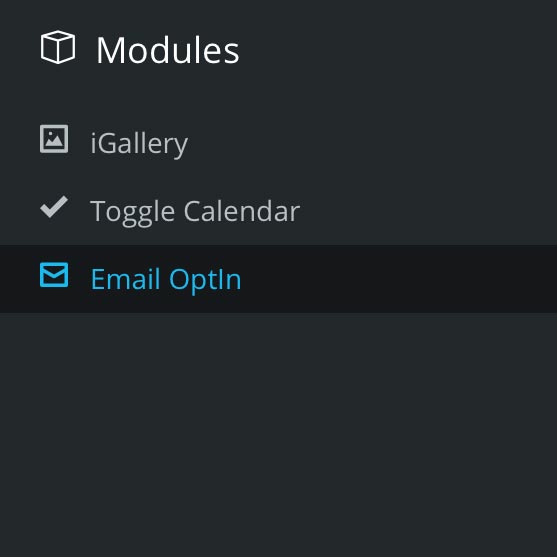
- Log into SIMS
- Under the Admin Menu, expand the Modules section.
- Select the Email OptIn Module.
Note!

You will now be presented with the View Lists page. From here you can navigate to the Manage Lists and Address Lookup page by clicking one of the tabs at the top right-hand corner of the SIMS user interface.
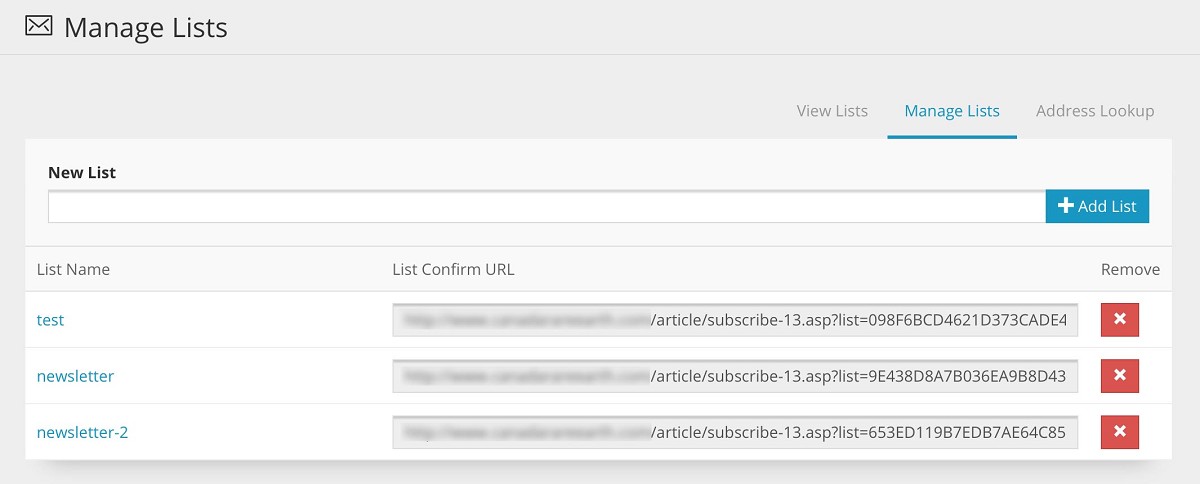
Adding A New Mailing List
- Click the Manage Lists tab at the top right-hand corner of the SIMS user interface.
- Enter your desired mailing list name in the New List input field. Preferably the name of the current mailing list you use
- Click Add List.
Note!
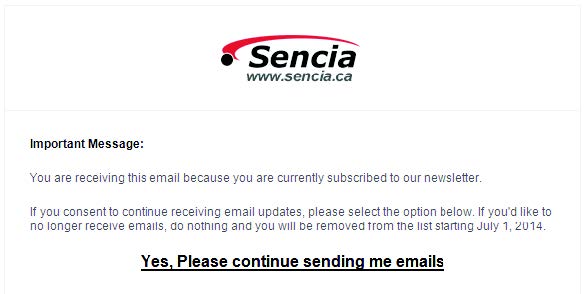
A URL will be generated and listed. Copy this link and paste it into an email to your current mailing list. When users receive the email, they will be able to click the link and submit their email address. This will provide you with their consent to receive future notification emails from you (ex. your monthly newsletter)

Viewing Your Lists
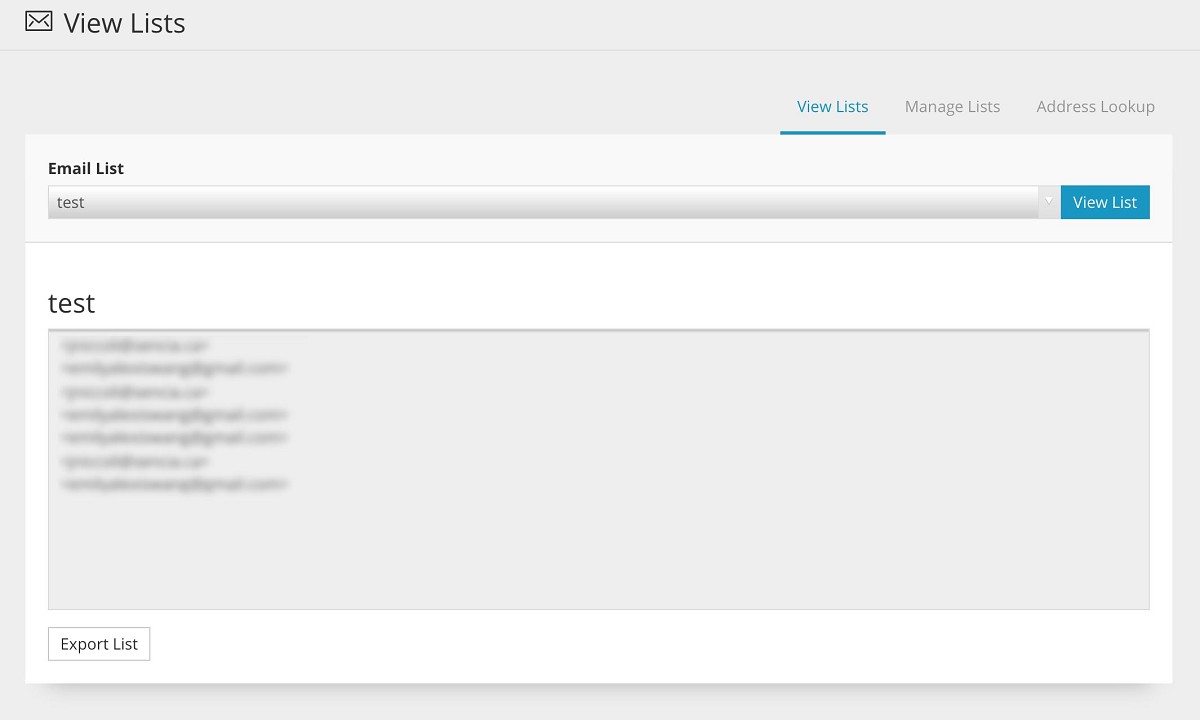
- Click the View Lists tab at the top right-hand side of the SIMS user interface.
- Select your mailing list from the Email List dropdown menu.
Note!
Here you will be able to see all of the users that have opted in to receive future notification emails from you. You can also export the list to a CSV file by clicking the Export List button.
Note!
The Send Opt-In Email button can be used if your email is currently hosted by Sencia Canada Ltd. This button works if you currently have a mailing list set-up in our system and created a new list in the
Email OptIn module with the same name. An email will be sent to all addresses on that mailing list. This may not function properly if you don't have your email hosted with us. Please contact Sencia Support at 807-768-6603 for more information regarding this feature.
Address Lookup and Managing Users
- Click the Address Lookup tab at the top right-hand side of the SIMS user interface.
- Type a full email address in the Email Address field.

Note!
You must enter a full email address for any information to be displayed. This page can help you track down a user's address and provide you with information such as what list they opted in for, when they were added and their IP address. You can also remove a user from a list by clicking the Remove button located to the right of the user's information.
The Authors & Keywords Module
The Authors Module and the Keywords Module are tools available to all SIMS licensees, but can only be accessed by Super Users.
These modules allow Super Users view, edit, or delete Authors and Keywords, without needing to edit on a per-article basis (although users will need to edit an article directly to create new Authors and Keywords).
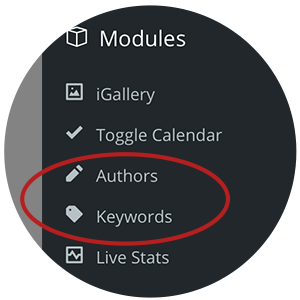
To view the Author & Keywords modules, expand the Modules Tab in the Admin Menu by selecting it, and then select either Authors or Keywords. If you cannot view these Modules, please contact our Support Team for more information on activating this feature.
The Authors Module
Once you expand the Author Module, a list of author names will appear in the right panel. Selecting an author's name will display all articles associated with them.
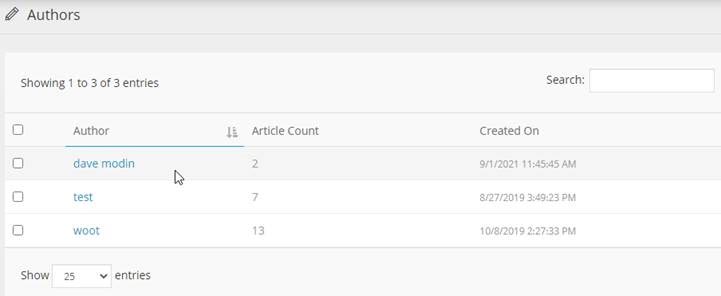
If no authors are displaying, you may not be utilizing the Author Field. The Author field is available in the Article Editor by selecting the Publishing tab and filling out the input field titled "Author."

The Keywords Module
When expanding the Keywords Module, a list of Keywords will appear in the right panel. Selecting a keyword will display all articles associated with that specific keyword.
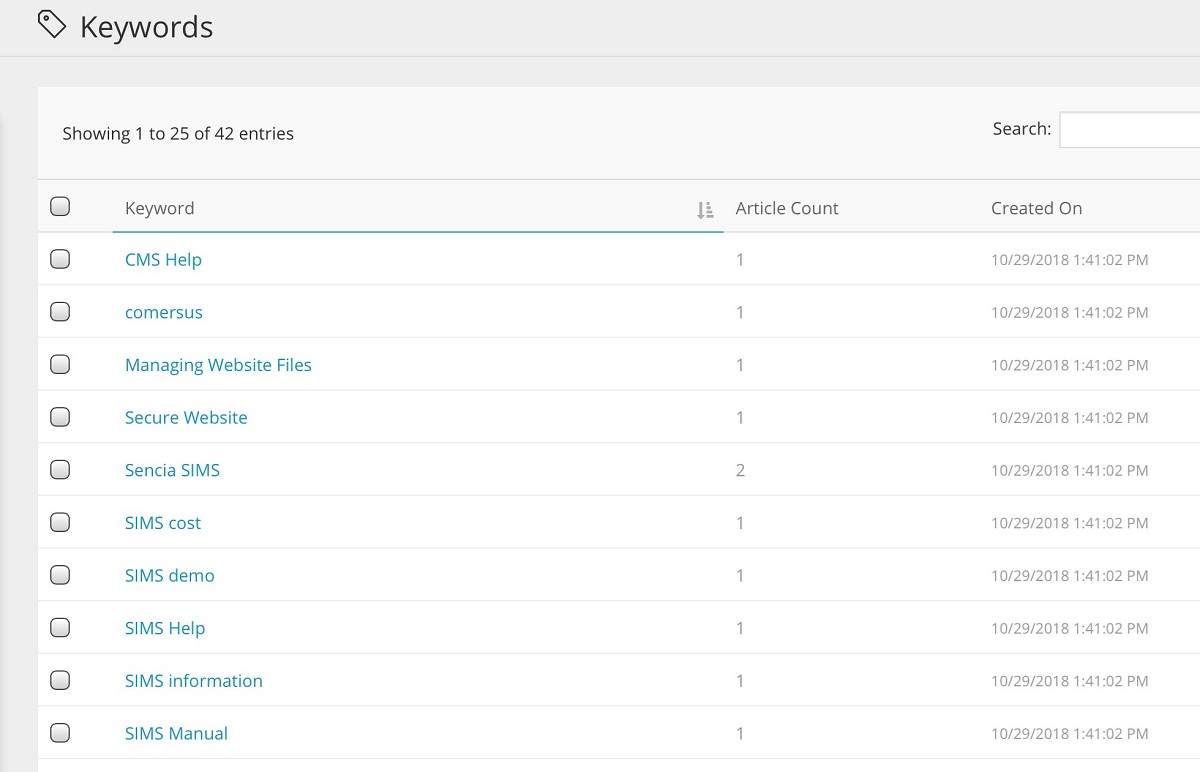
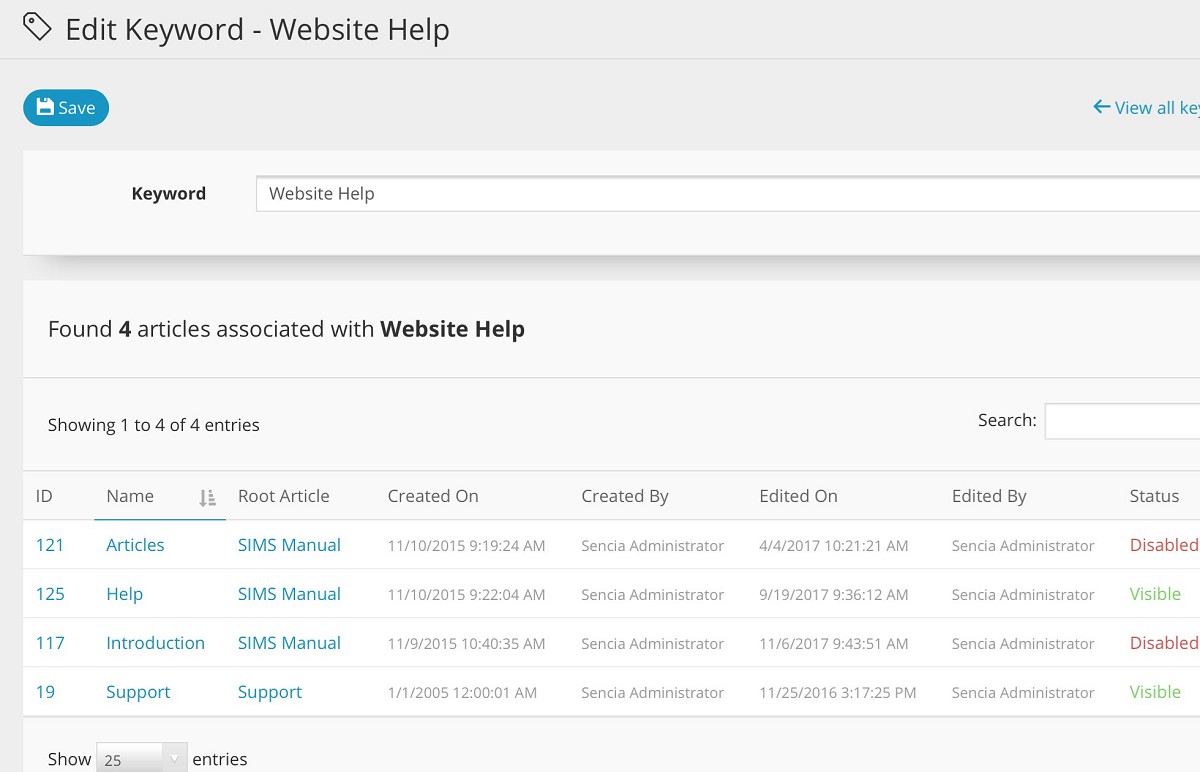
If no keywords are displaying, you may not be utilizing the keywords feature in your Articles. The Keywords field is available in the Article Editor by selecting the Meta tab and filling out keywords in the input field titled "Keywords." Each individual keyword should be separated by a comma. For example, if you are using the keywords "SIMS" and "Module," it will be listed as: SIMS, Module